FAQ: How do I setup ThunderBird to send emails in the campus?
The followings give the brief procedures for setting up ThunderBird to use the SMTP gateway (smtp.office365.com) to send emails in the campus.
Procedures:
- From the menu bar, click Tools -> Account Settings...
- Click the Outgoing Server (SMTP) from the left panel. Then highlight the default server and click the Edit button.
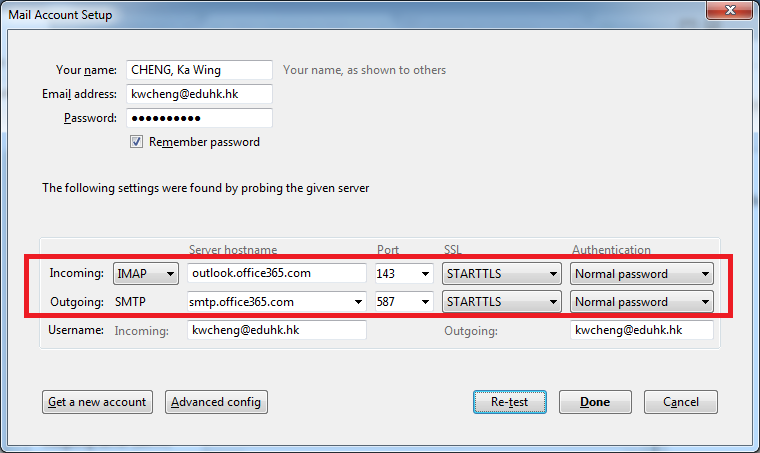
- Make sure you enter the following information correctly.
- Server Name: smtp.office365.com
- Port: 587
- Connection security: STARTTLS
- Authentication method: Normal password
- User name: your username