
FAQ: How to redirect email to another account on Office 365 Outlook Web App?
You can have your emails automatically forwarded to another address. You can forward all of your new messages by creating a redirect rule in Outlook Web App on Office 365.
Procedures:- Login Outlook Web App
- Click the Gear icon
 -> Options -> Organize Email -> Inbox Rules.
 - Click the New icon
 and select "Create a new rule for arriving messages..."
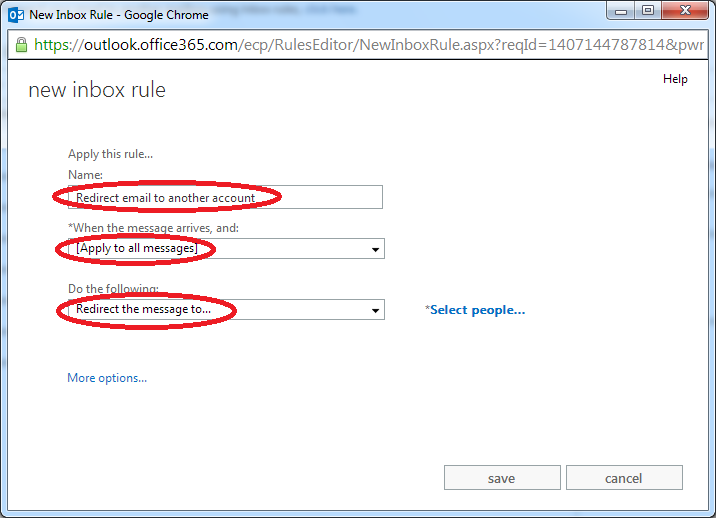
 - In the Name field, enter the name of this rule. (e.g. Redirect email to another account)
- From the *When the message arrives, and: field, choose "Apply to all messages"
- From the Do the following: field, choose "Redirect message to..."
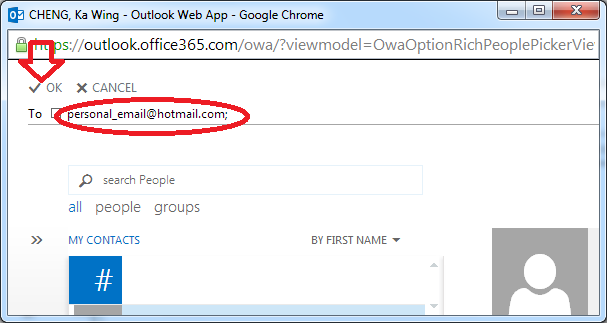
- A pop-up windows will be shown. Enter the email address of account you want to receive the emails. Then Click "OK"
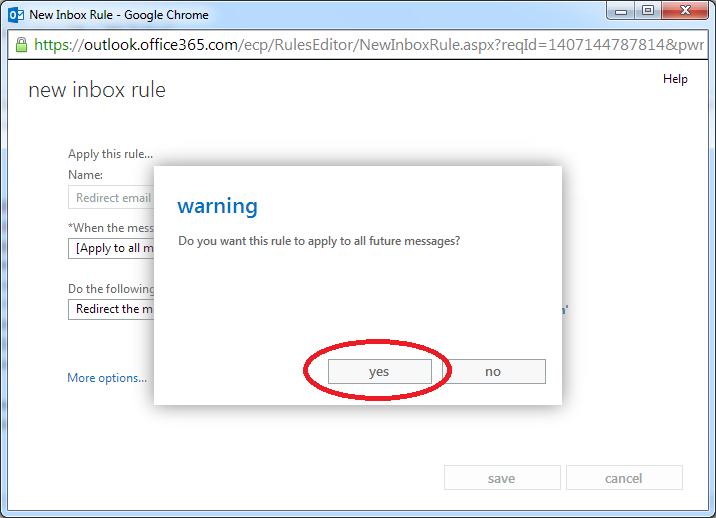
- Then click Save
- Click Yes, when the warning message prompt.
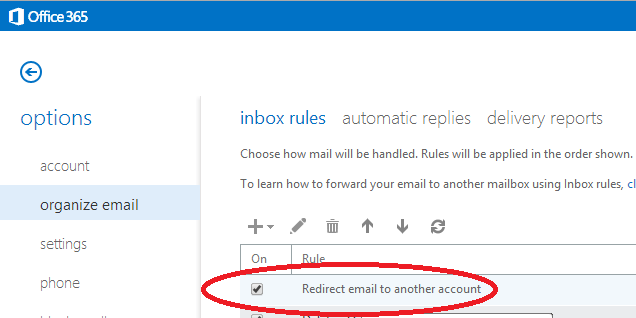
- Make sure there is a tick for the new rule. The rule is effective now. (If you want to turn off the rule, just un-tick it.)
Note:
- If an invalid email address is used, your emails will be lost.
- User should clean up the mailbox regularly. Otherwise, you may encounter problems when email usage has exceeded the quota limit.